Documentation Index
Fetch the complete documentation index at: https://docs.screenpi.pe/llms.txt
Use this file to discover all available pages before exploring further.
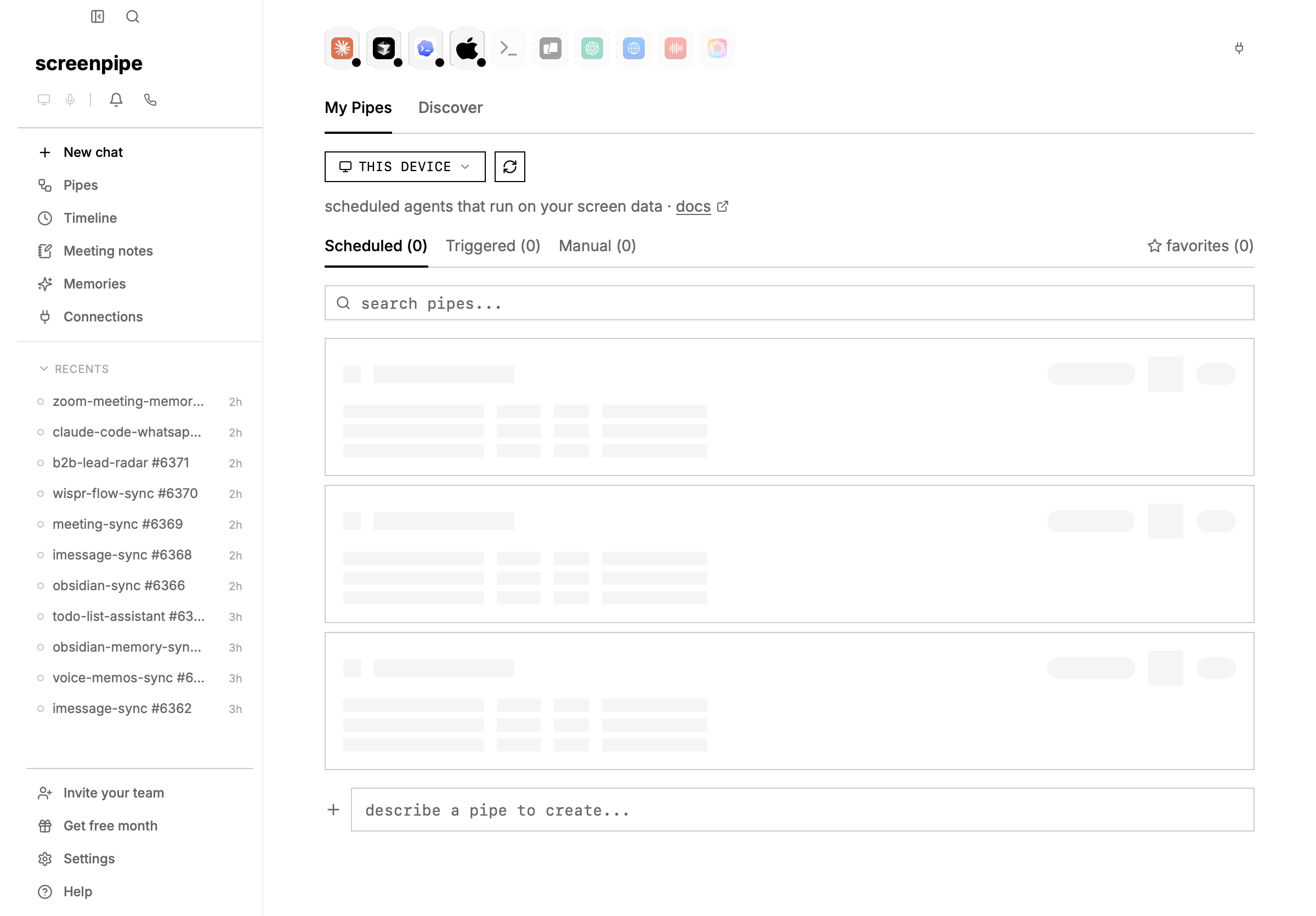
browse and install community pipes
to find and install pipes others have made:
- open screenpipe and click Pipes in the sidebar
- click the Discover tab at the top
- browse featured and community pipes, or search for a specific one
- click GET to install any pipe
- go to Settings → Pipes to enable it and configure the schedule
you can also browse all available pipes online at screenpi.pe/pipes before installing.
quick start — paste this into claude code
copy this prompt into claude code, cursor, or any AI coding assistant:
create a screenpipe pipe that [DESCRIBE WHAT YOU WANT].

## what is screenpipe?

screenpipe is a desktop app that captures your screen text primarily through accessibility APIs, falls back to OCR when needed, and records audio transcriptions.
it runs a local API at http://localhost:3030 that lets you query everything you've seen, said, or heard.

## what is a pipe?

a pipe is a scheduled AI agent defined as a single markdown file: ~/.screenpipe/pipes/{name}/pipe.md
every N minutes, screenpipe runs a coding agent (like pi or claude-code) with the pipe's prompt.
the agent can query your screen data, write files, call external APIs, send notifications, etc.

## pipe.md format

the file starts with YAML frontmatter, then the prompt body:

---
schedule: every 30m
enabled: true
---

Your prompt instructions here...

## context header

before execution, screenpipe prepends a context header to the prompt with:
- time range (start/end timestamps based on the schedule interval)
- current date
- user's timezone
- screenpipe API base URL
- output directory

the AI agent uses this context to query the right time range. no template variables needed in the prompt.

## screenpipe search API

the agent queries screen data via the local REST API:

curl "http://localhost:3030/search?limit=20&content_type=all&start_time=<ISO8601>&end_time=<ISO8601>"

### query parameters
- q: text search query (optional)
- content_type: "all" | "ocr" | "audio" | "input" | "accessibility"
- limit: max results (default 20)
- offset: pagination offset
- start_time / end_time: ISO 8601 timestamps
- app_name: filter by app (e.g. "chrome", "cursor")
- window_name: filter by window title
- browser_url: filter by URL (e.g. "github.com")
- min_length / max_length: filter by text length
- speaker_ids: filter audio by speaker IDs

### screen text results (what was on screen)
each result contains:
- text: extracted accessibility text or OCR fallback text visible on screen
- app_name: which app was active (e.g. "Arc", "Cursor", "Slack")
- window_name: the window title
- browser_url: the URL if it was a browser
- timestamp: when it was captured
- file_path: path to the video frame
- focused: whether the window was focused

### audio results (what was said/heard)
each result contains:
- transcription: the spoken text
- speaker_id: numeric speaker identifier
- timestamp: when it was captured
- device_name: which audio device (mic or system audio)
- device_type: "input" (microphone) or "output" (system audio)

### accessibility results (accessibility tree text)
each result contains:
- text: text from the accessibility tree
- app_name: which app was active
- window_name: the window title
- timestamp: when it was captured

### input results (user actions)
query via: curl "http://localhost:3030/search?content_type=input&app_name=Slack&limit=50&start_time=<ISO8601>&end_time=<ISO8601>"
event types: text (keyboard input), click, app_switch, window_focus, clipboard, scroll

## secrets

store API keys in a .env file next to pipe.md (never in the prompt itself):
echo "API_KEY=your_key" > ~/.screenpipe/pipes/my-pipe/.env
reference in prompt: source .env && curl -H "Authorization: Bearer $API_KEY" ...

## after creating the file

use the desktop app: go to **settings → pipes** to enable, run, and view logs. browse and install pipes from the **Pipes** section in the sidebar.

or use the REST API:
install: curl -X POST http://localhost:3030/pipes/install -H "Content-Type: application/json" -d '{"source": "~/.screenpipe/pipes/my-pipe"}'
enable:  curl -X POST http://localhost:3030/pipes/my-pipe/enable -H "Content-Type: application/json" -d '{"enabled": true}'
test:    curl -X POST http://localhost:3030/pipes/my-pipe/run
logs:    curl http://localhost:3030/pipes/my-pipe/logs
[DESCRIBE WHAT YOU WANT] with your use case — e.g. “tracks my time in toggl based on what apps I’m using”, “writes daily summaries to obsidian”, “sends me a slack message if I’ve been on twitter for more than 30 minutes”.
what are pipes?
pipes are automated workflows that run on your screenpipe data at regular intervals. each pipe is a markdown file with a prompt and a schedule. under the hood, screenpipe runs a coding agent (like pi) that can query your screen data, call APIs, write files, and take actions.
use chat, MCP, or a pipe?
| job | use |
|---|
| ask one question about recent activity | chat |
| give Claude, Codex, Cursor, or another assistant screen memory | MCP |
| run the same workflow every day or hour | pipe |
| write to Obsidian, CRM, Slack, or another app | pipe plus connections |
| build an app or script against screenpipe | API recipes |
pipe.md
~/.screenpipe/pipes/
├── daily-journal/
│   └── pipe.md
├── toggl-sync/
│   ├── pipe.md
│   └── .env          # secrets (api keys)
└── obsidian-sync/
    └── pipe.md
creating a pipe
create a folder in ~/.screenpipe/pipes/ with a pipe.md file:
mkdir -p ~/.screenpipe/pipes/my-pipe
cat > ~/.screenpipe/pipes/my-pipe/pipe.md << 'EOF'
---
schedule: every 30m
enabled: true
---

Summarize my screen activity for the last 30 minutes.
Query screenpipe at http://localhost:3030/search using the time range from the context header.
Write the summary to ./output/<date>.md
EOF

# then use the desktop app (settings → pipes) to install, enable, and test
# or use the REST API:
# curl -X POST http://localhost:3030/pipes/install -H "Content-Type: application/json" -d '{"source": "~/.screenpipe/pipes/my-pipe"}'
# curl -X POST http://localhost:3030/pipes/my-pipe/enable -H "Content-Type: application/json" -d '{"enabled": true}'
# curl -X POST http://localhost:3030/pipes/my-pipe/run
--- markers, followed by the prompt:
---
schedule: every 2h
enabled: true
---

Your prompt goes here. This is what the AI agent will execute.
You can reference screenpipe's API, write files, call external APIs, etc.
frontmatter fields
| field | required | default | description |
|---|
schedule | yes | manual | every 30m, every 2h, daily, cron (0 */2 * * *), or manual |
enabled | no | true | whether the scheduler runs this pipe |
timeout | no | 300 (5 min) | execution timeout in seconds. increase for slow models (e.g., timeout: 2400 for 40 min). if a pipe runs over this limit, it is terminated. |
Time range: 2026-02-12T13:00:00Z to 2026-02-12T14:00:00Z
Date: 2026-02-12
Timezone: PST (UTC-08:00)
Pipe name: my-pipe
Output directory: ./output/
Screenpipe API: http://localhost:3030
| format | example | description |
|---|
| interval | every 30m, every 2h | runs at fixed intervals |
| daily | daily | runs once per day |
| cron | 0 */2 * * * | standard 5-field cron expression |
| manual | manual | only runs when triggered manually |
example: pipe with longer timeout for slow models
if your pipe uses a slower AI model or runs complex analysis, increase the timeout:
---
schedule: daily
enabled: true
timeout: 2400
---

Analyze user activity and generate a detailed report.
Use claude-opus or other capable models for thorough analysis.
Write results to ./output/daily-report.md
timeout field, it would be limited to 5 minutes and likely timeout on slower models.
manage pipes
use the desktop app (settings → pipes) or the REST API:
http api
when screenpipe is running, pipes are also manageable via the local API:
# list all pipes
curl http://localhost:3030/pipes

# run a pipe
curl -X POST http://localhost:3030/pipes/my-pipe/run

# enable/disable
curl -X POST http://localhost:3030/pipes/my-pipe/enable \
  -H "Content-Type: application/json" \
  -d '{"enabled": true}'

# update pipe content
curl -X POST http://localhost:3030/pipes/my-pipe/config \
  -H "Content-Type: application/json" \
  -d '{"raw_content": "---\nschedule: every 1h\nenabled: true\n---\n\nYour prompt here..."}'

# view logs
curl http://localhost:3030/pipes/my-pipe/logs

# install from URL
curl -X POST http://localhost:3030/pipes/install \
  -H "Content-Type: application/json" \
  -d '{"source": "https://example.com/pipe.md"}'
app ui
go to settings → pipes to see all installed pipes, toggle them on/off, run them manually, edit the pipe.md directly, select an AI preset, and view logs.
examples
time tracking (toggl)
---
schedule: every 1m
enabled: true
---

Automatically update my Toggl time tracking based on screen activity.

1. Query screenpipe search API for the time range in the context header
2. Read API key: source .env
3. Check current Toggl timer
4. If activity changed, stop old timer and start new one

Activity rules:
- VSCode/Cursor/Terminal → "coding"
- Chrome with GitHub → "code review"
- Slack/Discord → "communication"
- Zoom/Meet → "meeting"
daily journal (obsidian)
---
schedule: every 2h
enabled: true
---

Summarize my screen activity into a daily journal entry.
Query screenpipe search API for the time range in the context header.
Write to ~/obsidian-vault/screenpipe/<date>.md
Use [[wiki-links]] for people and projects.
Include timeline deep links: [time](screenpipe://timeline?timestamp=<ISO8601>)
standup report
---
schedule: daily
enabled: true
---

Generate a standup report from yesterday's screen activity.
Format: what I did, what I'm doing, blockers.
Write to ./output/<date>.md
AI presets
in the screenpipe app, go to settings → AI settings to configure presets (model + provider combinations). in settings → pipes, you can assign a preset to each pipe — this overrides the model/provider in the frontmatter.
screenpipe auto-creates a default preset using screenpipe cloud.
AI providers
by default, pipes use screenpipe cloud — no setup needed if you have a screenpipe account.
to use your own AI subscription (Claude Pro, ChatGPT Plus, Gemini, or API keys), pipes reuse pi’s native auth system:
option 1: subscription (free with existing plan)
# run pi interactively and use /login
pi
# then type: /login
# select Claude Pro, ChatGPT Plus, GitHub Copilot, or Google Gemini
option 2: API key
add to ~/.pi/agent/auth.json:
{
  "anthropic": { "type": "api_key", "key": "sk-ant-..." },
  "openai": { "type": "api_key", "key": "sk-..." },
  "google": { "type": "api_key", "key": "..." }
}
ANTHROPIC_API_KEY, OPENAI_API_KEY, GEMINI_API_KEY.
using in a pipe
add provider to your pipe.md frontmatter:
---
schedule: every 30m
provider: anthropic
model: claude-haiku-4-5@20251001
---
secrets
store API keys in .env files inside the pipe folder:
echo "TOGGL_API_KEY=your_key_here" > ~/.screenpipe/pipes/toggl-sync/.env
source .env && curl -u $TOGGL_API_KEY:api_token ...
never put secrets in pipe.md — the prompt may be visible in logs.
architecture
pipe.md (prompt + config)
  → pipe manager (parses frontmatter, schedules runs)
    → agent executor (pi, claude-code, etc.)
      → agent queries screenpipe API + executes actions
        → output saved to pipe folder
- agent ≠ model: the agent is the CLI tool (pi, claude-code). the model is the LLM (haiku, opus, llama).
- one pipe runs at a time (global semaphore prevents overlap)
- lookback = schedule interval (capped at 8h to prevent context overflow)
- logs saved to
~/.screenpipe/pipes/{name}/logs/ as JSON
troubleshooting
for a production-style debugging flow, including logs, stuck runs, provider auth, connection proxies, and permissions, see debug screenpipe pipes. pipe scheduled but doesn’t run
problem: windows task scheduler or cron shows the task running, but the pipe produces no output.
solution: the pipe agent needs to know which pipe it’s executing. the context header includes Pipe name: <name> so the agent can identify itself. make sure:
- the pipe folder name matches the expected pipe name (e.g.,
~/.screenpipe/pipes/my-pipe/)
- the pipe is listed in
screenpipe pipe list
- check logs:
screenpipe pipe logs my-pipe
pipe runs but produces empty output
problem: pipe executes successfully but generates no files or notifications.
solution: ensure your pipe prompt includes concrete instructions to:
- query screenpipe API (e.g.,
curl http://localhost:3030/search?...)
- write output files (e.g., to
./output/<date>.md)
- or send notifications (e.g.,
POST http://localhost:11435/notify)
test locally first: screenpipe pipe run my-pipe to see logs before relying on scheduled execution.
windows task scheduler permission denied
problem: windows task scheduler fails with permission errors when running pipes.
solution: ensure screenpipe engine is running before the task executes. pipes require the local API at http://localhost:3030. schedule the pipe after the app starts, or use the desktop UI instead.
security & permissions
by default, pipes have full API access — they can call any screenpipe endpoint. this is fine for pipes you write yourself, but if a pipe doesn’t need write access, you can restrict it.
add permissions to your frontmatter:
---
schedule: every 30m
permissions: reader
---
presets
| preset | what it allows |
|---|
| (none) | full access — no restrictions, same as always |
reader | read-only: /search, /activity-summary, /meetings (GET), /notify, /health |
writer | reader + meeting writes, memory writes |
admin | everything (explicit opt-in, useful for logging) |
custom rules
use typed patterns for fine-grained control over endpoints and data:
---
schedule: every 1h
permissions:
  allow:
    - App(Slack, Chrome)
    - Content(accessibility, audio)
  deny:
    - Api(* /meetings/stop)
    - App(1Password)
    - Window(*incognito*)
---
Api(METHOD /path), App(name), Window(glob), Content(type). deny always wins.
if your pipe doesn’t need to write data, add permissions: reader — it prevents accidental side effects like ending a meeting or deleting data.
built-in pipes
screenpipe ships with 7 template pipes. browse them in the app under pipes, or see the full catalog: pipe store →
| pipe | what it does | schedule |
|---|
| Day Recap | summarize accomplishments, key moments, unfinished work | on-demand |
| Standup Update | generate a copy-paste standup report | on-demand / daily |
| Time Breakdown | where your time went by app, project, category | on-demand |
| AI Habits | how you use AI tools — patterns and insights | on-demand |
| AI Prompt Journal | capture every prompt you send to AI tools | every hour |
| Meeting Summary | summarize meeting transcripts with action items | on-demand |
| Video Export | create a video clip from your screen recordings | on-demand |