screenpipe records meetings without a bot joining the call. it captures the meeting window, microphone, optional system audio, transcript, speaker labels, calendar context, and the surrounding screen history.
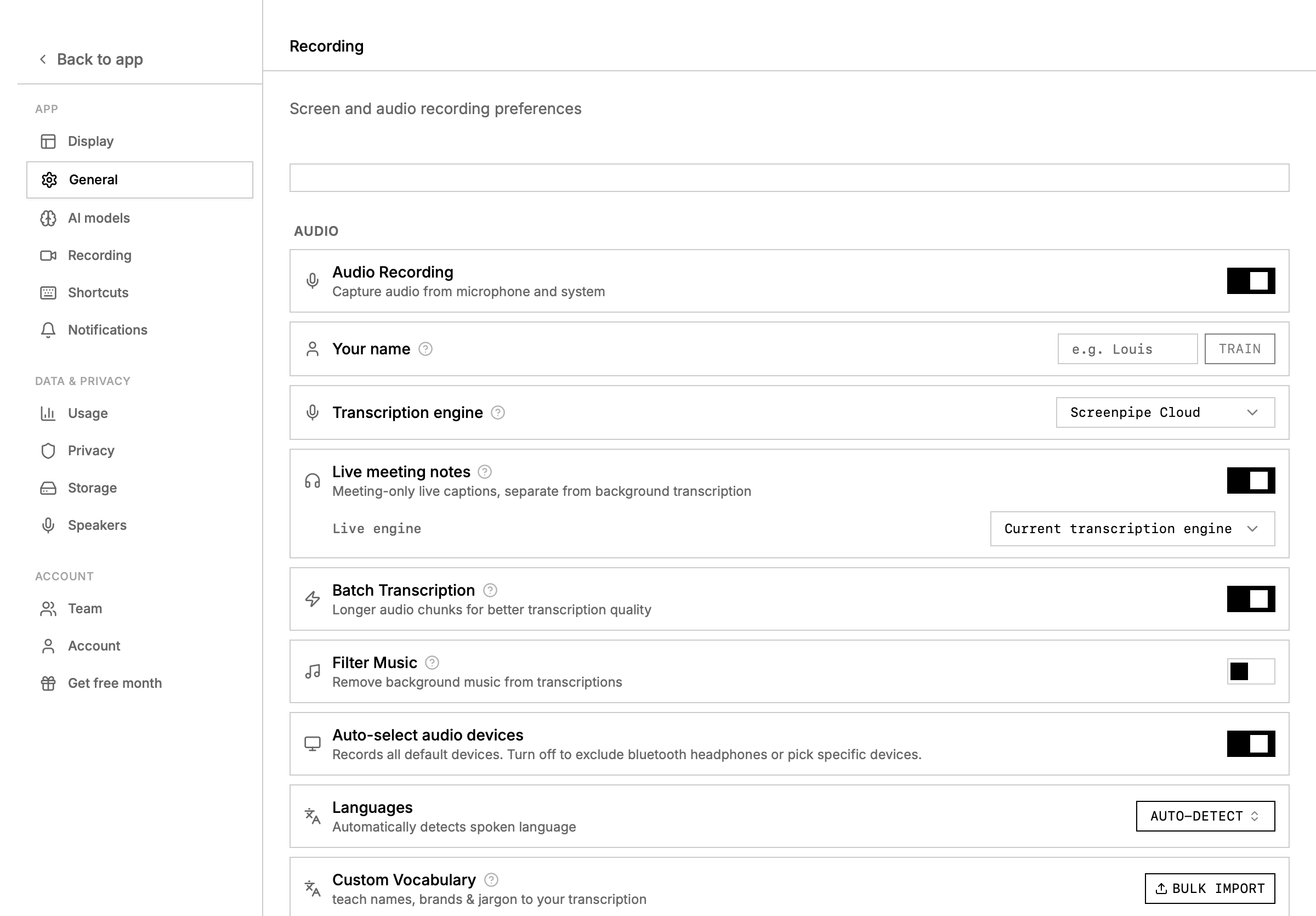
what screenpipe captures
| layer | what it adds |
|---|
| screen | slides, docs, pricing pages, dashboards, chat, and CRM screens shared or viewed during the call |
| audio | local transcript from your microphone and selected audio sources |
| speakers | speaker IDs, names, aliases, similar-speaker suggestions, and merge history |
| calendar | attendee names, meeting title, and time window for better labeling |
| notes | AI summaries, action items, and follow-up context |
| timeline | frame links and time anchors you can revisit later |
setup checklist
- open settings -> recording and choose the microphone and system audio sources you want.
- connect Google Calendar in settings -> connections if you want attendee-aware speaker naming.
- open the meeting app normally: Zoom, Google Meet, Microsoft Teams, Slack huddles, or another call surface.
- let screenpipe record and transcribe in the background.
- open the meeting from the timeline or search with
content_type=audio.
quick verification:
curl http://localhost:3030/health
curl "http://localhost:3030/search?content_type=audio&limit=1"
calendar context is especially strong for 1:1 meetings. when the meeting has exactly two attendees, screenpipe can infer the other speaker more reliably.
live transcript workflow
Use the meeting transcript sidebar to:
- rename a speaker once and propagate the label through the meeting
- search for similar speakers before merging duplicates
- copy the full transcript as plain text
- open the related timeline moment when you need visual context
- summarize the meeting with your default AI or a selected pipe
summarize with a pipe
meeting summaries can use any installed or store pipe. use a pipe when you want a repeatable output format, CRM writeback, an Obsidian note, or a sales-call summary that always includes the same fields.
good summary-pipe instructions include:
Summarize the meeting in this format:

## decision
## customer pain
## objections
## action items
## follow-up email draft

Use transcript evidence and include timeline links when useful.
Summarize the meeting.
Include:
- customer goal
- current workflow
- objections or privacy concerns
- requested integrations
- next action
- exact transcript quotes only when useful
speaker cleanup
curl "http://localhost:3030/speakers/unnamed?limit=10"

curl -X POST http://localhost:3030/speakers/update \
  -H "Content-Type: application/json" \
  -d '{"id": 1, "name": "Sarah Chen"}'

curl "http://localhost:3030/speakers/similar?speaker_id=1"

curl -X POST http://localhost:3030/speakers/merge \
  -H "Content-Type: application/json" \
  -d '{"speaker_to_keep_id": 1, "speaker_to_merge_id": 2}'
meeting APIs
list and search meetings
# list recent meetings
curl "http://localhost:3030/meetings?limit=20"

# search by title, attendees, or notes (case-insensitive)
curl "http://localhost:3030/meetings?q=customer+sync&limit=20"

# filter by date range
curl "http://localhost:3030/meetings?start_time=2026-05-01T00:00:00Z&end_time=2026-05-31T23:59:59Z"

# combine search with date range
curl "http://localhost:3030/meetings?q=sprint&start_time=2026-05-01T00:00:00Z&limit=10"
q parameter searches across meeting title, attendees, and notes with case-insensitive substring matching.
manage meetings
curl "http://localhost:3030/meetings/status"

curl -X POST http://localhost:3030/meetings/start
curl -X POST http://localhost:3030/meetings/stop

curl -X POST http://localhost:3030/meetings/merge \
  -H "Content-Type: application/json" \
  -d '{"meeting_ids": [12, 13]}'
Zoom, Meet, and Teams tradeoffs
| tool | best setup | notes |
|---|
| Zoom | mic plus system audio, Zoom connection when you need cloud recording metadata | OAuth can enrich meeting metadata; local capture still works without a bot |
| Google Meet | mic plus system audio, Google Calendar connection | calendar attendee context helps speaker naming |
| Microsoft Teams | mic plus system audio, Teams or Microsoft 365 connection for structured context | useful for enterprise rollouts and meeting-linked docs |
troubleshooting
| symptom | try this |
|---|
| empty transcript | verify microphone permission, selected device, and content_type=audio search |
| late transcript | wait for the transcription batch to finish or switch to realtime transcription |
| speaker names wrong | connect calendar, rename the speaker, then merge similar speakers |
| duplicated meeting | use merge from the UI or /meetings/merge |
| summary missed context | choose a custom pipe that also searches screen text and accessibility context during the meeting window |
| audio dropouts | reduce batch duration, select fewer audio devices, or use a faster/cloud transcription engine |
related pages