start here
| symptom | first check | deeper guide |
|---|---|---|
| app says free after purchase | sign out/in with purchase email | FAQ |
| cannot find receipt | account billing area and purchase email | FAQ |
| desktop timeline missing after CLI install | install desktop app, not only CLI | getting started |
| app opens but data is empty | curl http://localhost:3030/health and wait 1-2 minutes | API recipes |
| AI tool cannot see screenpipe | MCP config, Node 18+, app running | MCP server |
| pipe fails or hangs | pipe logs, provider auth, permissions | pipe debugging |
| Windows command window flashes during pipe run | pipe exits immediately; check logs | pipe debugging |
| meeting transcript is empty | microphone, system audio, transcription engine | meeting intelligence |
/api/search returns 404 | use /search on localhost:3030 | API recipes |
| privacy question | local/cloud path and enabled toggles | privacy data flow |
| connected app fails | OAuth callback, token, proxy path | connection reference |
installation & startup
installed the CLI but cannot find the timeline
npx screenpipe@latest record starts local recording and the API. it does not give you the desktop timeline UI by itself.
if you want the visual timeline, pipe store, settings, chat, and guided permissions, install the desktop app from screenpi.pe/onboarding.
after installing the desktop app:
- open screenpipe.
- grant screen recording and accessibility permissions.
- wait 1-2 minutes.
- verify data with
curl "http://localhost:3030/search?limit=5&content_type=all".
screenpipe won’t start
macOS:- grant screen recording permission: System Settings → Privacy & Security → Screen Recording → enable screenpipe
- grant accessibility permission: System Settings → Privacy & Security → Accessibility → enable screenpipe
- if you see “app is damaged”, right-click the app → Open (bypasses Gatekeeper on first launch)
- run as administrator on first launch
- if Windows Defender blocks it, click “More info” → “Run anyway”
- ensure .NET runtime is installed (screenpipe installer usually handles this)
- if the embedded browser or timeline is blank, install or repair Microsoft Edge WebView2 Runtime and restart screenpipe
- install dependencies:
sudo apt install tesseract-ocr libxcb1 - grant screen capture permissions for your display server (X11 or Wayland)
login loop, failed to load user, or wrong account
try this before reinstalling:- quit screenpipe completely.
- reopen the app and sign out if possible.
- sign back in with the same email used for purchase or trial setup.
- make sure your default browser can open the login callback.
- temporarily disable VPN/proxy if the callback never returns.
screenpipe is running but not capturing
check the health endpoint:- make sure screen recording permission is granted
- restart the app
- check if another instance is already running on port 3030
- wait 1-2 minutes — screenpipe needs time to capture and process frames
- check that your display is listed in settings → monitors
- verify screen text search is working:
curl "http://localhost:3030/search?limit=1&content_type=all" - try
content_type=accessibilityandcontent_type=allbefore narrowing to OCR-only searches - check included/ignored windows filters so you are not excluding the app you are testing
API and timeline confusion
/api/search returns 404
the local screenpipe endpoint is:
/api/search.
common checks:
curl http://localhost:3030/healthcurl "http://localhost:3030/search?limit=5&content_type=all"curl "http://localhost:3030/search?limit=5&content_type=accessibility"curl "http://localhost:3030/search?limit=5&content_type=audio"
search only finds old results
if recent results are missing:- confirm recording is still active in settings.
- check whether the app/window is ignored.
- search without
start_time,end_time,app_name, orwindow_namefilters first. - if a pipe uses a schedule, remember it may only search its schedule window.
- restart screenpipe if the UI is stale but the API is healthy.
can I capture only work hours?
use app recording filters when you want to include or exclude specific apps, windows, or URLs. for strict work-hour logic, create a pipe that checks the current time and exits outside your desired window, or configure recording/schedule settings when that control is available in the app.audio & transcription
no audio being captured
- check settings → recording — make sure at least one device is selected
- on macOS: grant microphone permission in System Settings → Privacy & Security → Microphone
- verify audio is being recorded:
curl "http://localhost:3030/search?content_type=audio&limit=1"
windows microphones record silence or near-silence
on Windows 11 24H2, some USB and communications-class microphones can expose formats that look valid but produce unusably quiet audio. if transcripts are empty or audio is around silent:- switch the input to the Windows system default microphone.
- unplug phantom devices such as dock stubs or controller adapters.
- test another USB port or direct connection instead of a dock.
- restart screenpipe and run
curl "http://localhost:3030/search?content_type=audio&limit=1". - include the exact device name when reporting the issue.
audio drops out during calls or long meetings
if you notice gaps in transcription or missing audio segments, the transcription queue is likely full and screenpipe is dropping segments to prevent the system from freezing. causes:- transcription can’t keep up with the incoming audio (especially with large batch sizes or slower hardware)
- multiple audio devices selected simultaneously
- transcription engine is overloaded (too many complex tasks running)
- reduce batch size: settings → recording → audio chunk duration — try lowering from default (30-40s) to 10-15s. smaller batches process faster and drop less audio
- switch to faster transcription: settings → AI models → try
whisper-tinyorwhisper-baseinstead ofwhisper-large-v3-turbo(trades accuracy for speed) - disable unused audio devices: settings → recording → uncheck devices you don’t need — recording one device instead of multiple reduces queue pressure
- use cloud transcription: switch to deepgram or screenpipe-cloud for remote processing, which doesn’t block your local system
- reduce system load: close heavy apps or run screenpipe on a machine with better CPU/RAM
bluetooth headphone audio quality drops
this is a macOS limitation, not a screenpipe bug. when any app opens a bluetooth microphone, macOS switches from A2DP (high quality) to HFP (phone quality). fix: go to settings → recording → switch input to your MacBook’s built-in microphone. screenpipe still captures your voice, and your bluetooth audio quality stays high. note: AirPods don’t have this issue — Apple uses a proprietary codec.transcription is inaccurate
- switch to a better engine: settings → AI models →
whisper-large-v3-turbo(most accurate) - set your language explicitly in settings (auto-detect is slower and less accurate)
- reduce background noise
- use a better microphone
- try
deepgramorscreenpipe-cloudfor cloud-based transcription (highest accuracy)
record only specific apps (e.g. Teams, Zoom)
if you want to record only certain applications (like Teams meetings) and exclude everything else:- screen capture: go to settings → recording → included windows and add the app name (e.g.,
Teams,Zoom). screenpipe will only capture these windows, even if you switch away briefly - audio devices: go to settings → recording and select only the devices you need — for example, just your microphone and system audio, deselecting other inputs
- test it: open Teams and verify the timeline shows only Teams content. try opening other apps — they shouldn’t appear in the recording
chat & AI interactions
chat hangs or stops responding
if your chat window freezes, try these fixes in order:- restart screenpipe — closes stalled message queues
- check health:
curl http://localhost:3030/health— if it fails, backend is stuck - verify you have data — screenpipe needs screen/audio history; wait 1-2 minutes after startup
- verify AI provider connection — settings → model selector. for ChatGPT/Claude, sign out/back in
- reduce load — disable unused pipes (settings → pipes), switch to faster model (gpt-4o mini), check logs for “timeout” errors
chat messages disappear
if assistant replies vanish when navigating away, update to v0.4+ — this message persistence bug was fixed. on older versions, reinstall screenpipe.AI model connection fails
- verify subscription active: openai.com (ChatGPT Plus/Pro) or claude.ai (Claude Pro)
- sign out/in: settings → model selector → sign out, restart, sign back in
- if still failing, your tokens expired — try again
pipes
Windows command window opens and closes when a pipe runs
this usually means the pipe started and crashed immediately.- open settings -> pipes.
- select the pipe and open logs.
- run the pipe manually.
- check that
pipe.mdexists in the pipe folder and has valid frontmatter. - if the pipe calls a script, run that script from PowerShell so the error stays visible.
- verify the local API with
curl http://localhost:3030/health.
pipe runs but produces no output
- check logs: go to settings → pipes → click your pipe → view logs
- make sure your prompt includes concrete instructions to write output or send notifications
- test manually: click “run” in the pipe UI and watch the logs in real-time
- verify screenpipe has data to work with:
curl "http://localhost:3030/search?limit=5" - confirm the prompt says what to do when no data is found, so the pipe does not silently guess
pipe doesn’t run on schedule
- make sure the pipe is enabled (toggle is on in settings → pipes)
- check that the schedule format is correct:
every 30m,every 2h,daily, or a cron expression - only one pipe runs at a time — if another pipe is running, yours will wait in the queue
- start with manual run; only debug the schedule after manual run works
pipe fails with AI errors
- check your AI provider is configured: settings → AI settings
- if using screenpipe cloud: make sure you’re signed in
- if using your own API key: verify it’s valid and has credits
- if using ChatGPT/Claude subscription: try signing out and back in to refresh tokens
- check the pipe logs for the specific error message
pipe can’t find screen data
- make sure screenpipe is actively recording (check health endpoint)
- the pipe only searches within its schedule interval — if schedule is “every 30m”, it only looks at the last 30 minutes
- verify data exists for the time range:
curl "http://localhost:3030/search?start_time=30m+ago&limit=5" - search with
content_type=allbefore narrowing toaccessibility,ocr, oraudio - remove
window_namefilters until you confirm the exact window title stored by screenpipe
pipe notifications, sounds, or Telegram messages do not fire
debug the pipeline in pieces:- confirm the pipe starts.
- confirm screenpipe search returns the condition you expect.
- test the notification or Telegram/API call outside the pipe.
- reconnect the integration if tokens expired.
- make the prompt write a log line when it decides not to notify.
MCP & AI connections
MCP not connecting to Claude/Cursor
- verify screenpipe is running:
curl http://localhost:3030/health - restart Claude Desktop / Cursor after adding the MCP config
- test the MCP server directly:
npx @modelcontextprotocol/inspector npx screenpipe-mcp - check that Node.js >= 18 is installed:
node --version
Claude/Cursor says “no results” when asking about screen
- make sure screenpipe has been running long enough to capture data
- try a broader query: “what apps have I been using?” instead of very specific text
- check that screen recording permissions are granted
ChatGPT connection not working
- sign out and sign back in (settings → model selector → sign out)
- make sure your ChatGPT subscription is active
- try restarting the screenpipe app
performance
screenpipe using too much CPU
- reduce capture FPS: settings → capture rate (default 1 FPS is usually fine)
- exclude heavy apps from capture: settings → recording → ignored windows
- on older machines, use
whisper-tinyinstead ofwhisper-large-v3-turbo
screenpipe using too much disk space
- screenpipe uses ~30 GB/month at 1 FPS — this is normal
- reduce capture rate in settings
- data is stored in
~/.screenpipe/data/— you can delete old recordings - future: cloud archive offloads older data (learn more →)
can I store data on a NAS or external drive?
you can back up~/.screenpipe/ to external storage. be careful with active database and media writes on slow or unreliable network drives; they can make the app feel broken or risk corruption.
for active long-term retention, prefer cloud archive or a stable local disk plus backup. if you do use a NAS, test recording, search, restart, and recovery before relying on it.
screenpipe using too much RAM
- typical usage is ~600 MB RAM
- if it’s using significantly more, restart the app
- close the timeline view if you’re not using it (it loads video frames)
- local PII models can use several GB while active, then unload after idle time. see privacy data flow.
timeline or owned browser is blank on Windows
- install or repair Microsoft Edge WebView2 Runtime.
- close screenpipe completely and reopen it.
- check whether other WebView2 apps on the machine render.
- if this only happens after sleep/wake, restart screenpipe and include logs in the report.
engine is still starting
some buttons disable themselves while the local engine is cold. wait for:privacy & PII
how is personal data protected?
screenpipe does not automatically redact personal information from storage by default. instead, you have these options:| feature | what it does | where |
|---|---|---|
| local AI PII removal | redacts sensitive data before selected AI workflows see it | settings → privacy → AI PII removal |
| privacy filter (enclave mode) | uses a confidential enclave to redact text for cloud AI | settings → privacy → privacy filter mode |
| ignored windows | prevents screenpipe from recording specific apps (password managers, banking) | settings → recording → ignored windows |
enable local PII redaction
- go to settings → privacy.
- toggle AI PII removal on.
- choose a redaction policy: default is
credentials-only(catches API keys, tokens, SSNs, credit cards). you can also choosestrictto redact names, emails, and phone numbers. - for image protection: toggle image PII removal separately if you want screenshots redacted before image workflows.
- restart screenpipe if you changed settings.
what does PII redaction remove?
- credentials-only mode (default): API keys (OpenAI, Anthropic, Stripe, etc.), SSNs, credit card numbers, tokens, private keys, database connection strings with passwords
- strict mode: all of above plus names, emails, phone numbers, IP addresses, URLs with credentials
- general text (even if it sounds like it might be sensitive)
- partial matches (e.g., an email-like pattern without valid formatting)
- structured data in code or config files that isn’t in a recognized credential format
PII redaction is optional, not automatic
PII stays in your local~/.screenpipe/ database and timeline by default. PII redaction only affects what you send to AI models when you enable it.
if you are syncing data to the cloud, archive, or a team, PII removal does not automatically apply — you must toggle it in settings, and it only affects AI workflows, not storage.
still stuck?
- check the FAQ for quick answers
- search GitHub issues — someone may have hit the same problem
- join our Discord — 10k+ members who can help debug
- your OS and version
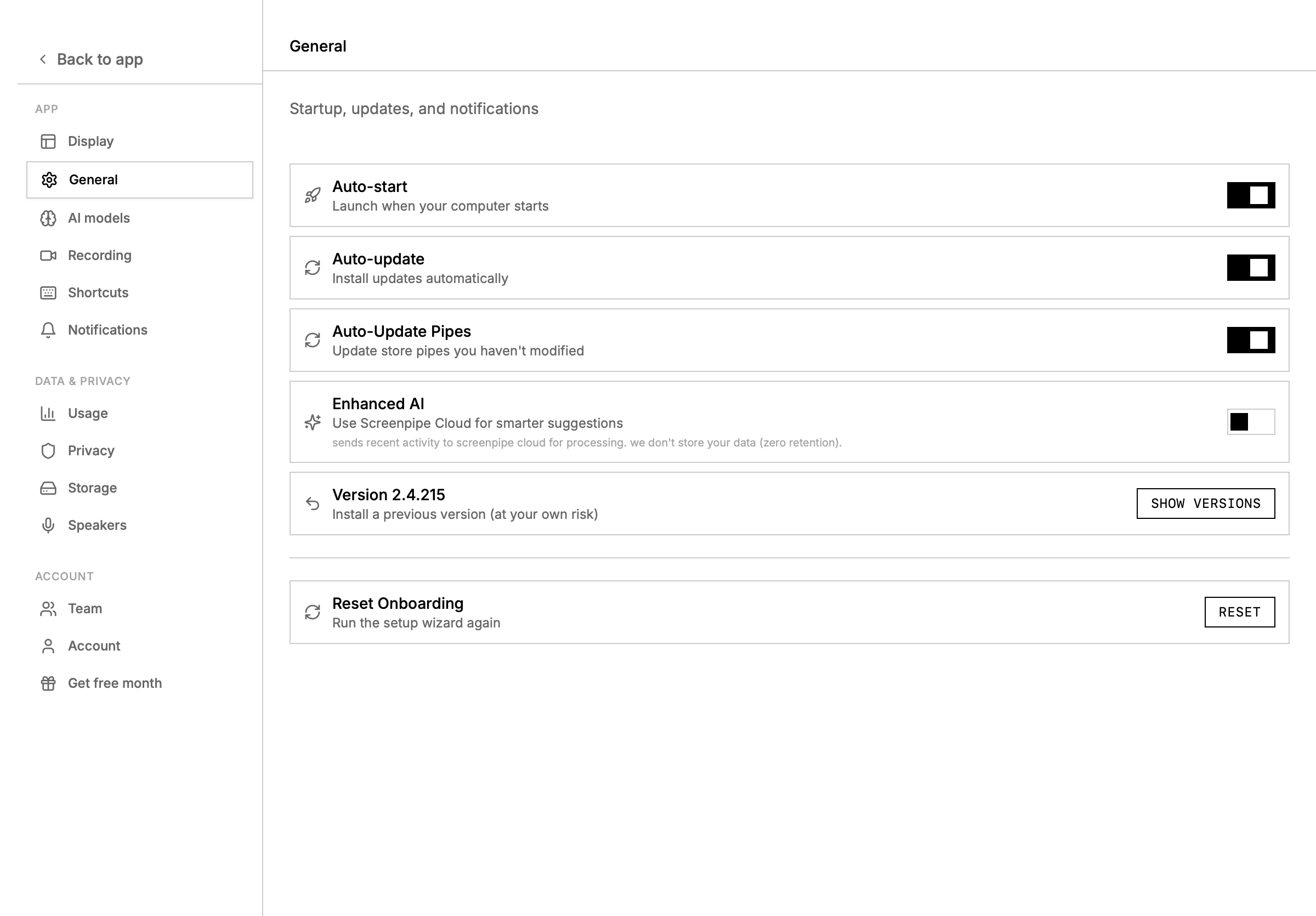
- screenpipe version (shown in settings)
- output of
curl http://localhost:3030/health - whether API auth and LAN access are enabled
- microphone/audio device name, if audio is involved
- relevant pipe logs or error messages