choose your path
| i want… | start here | success looks like |
|---|---|---|
| AI memory in Claude, Codex, Cursor, or another agent | follow the MCP connection step below | your AI can answer “what did I do in the last 5 minutes?“ |
| local search and API access | install, record for a few minutes, then try API recipes | /search returns recent screen or audio results |
| recurring automations | install your first pipe, then read pipe debugging | the pipe runs manually, logs clearly, and writes a useful output |
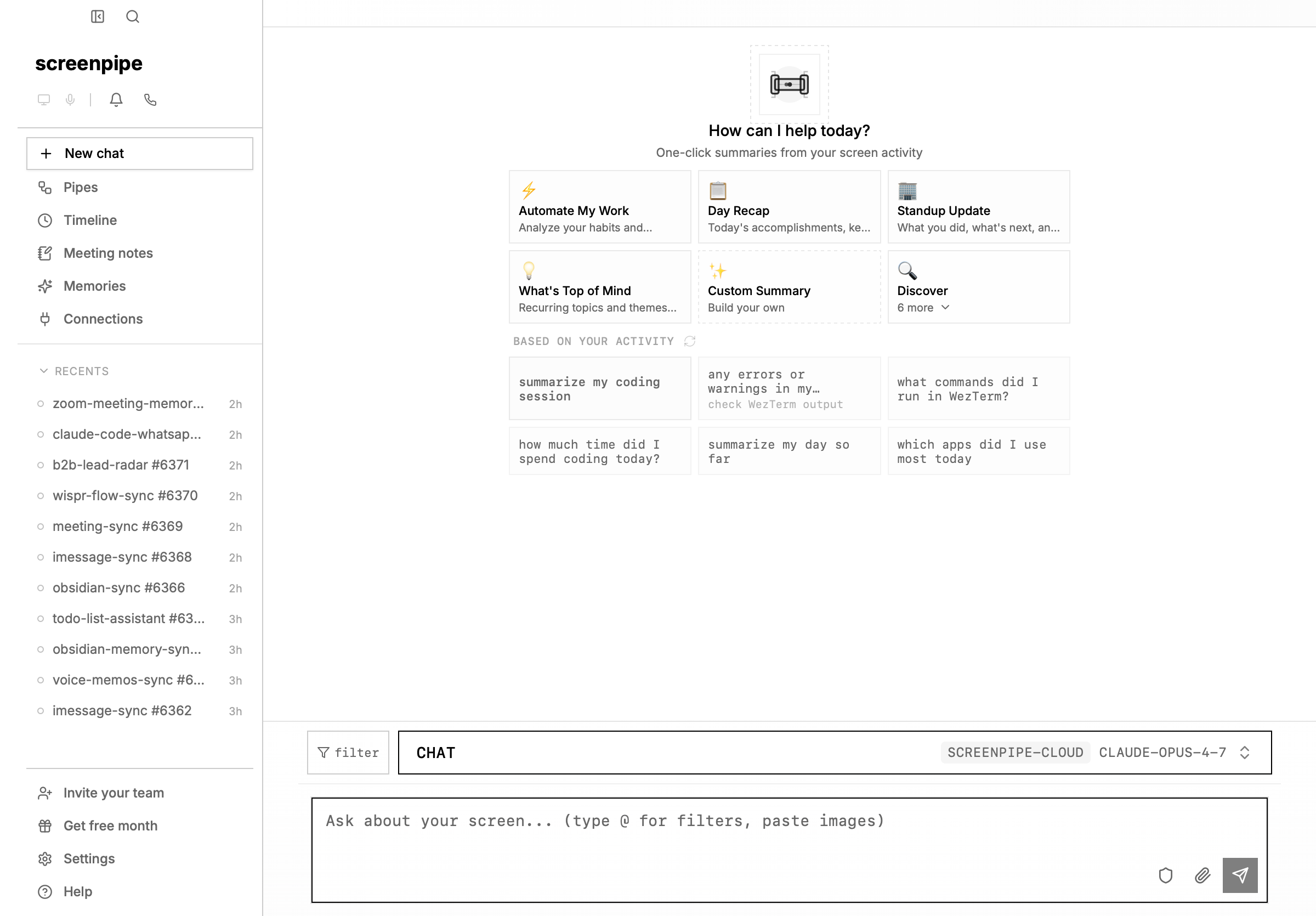
the 5-minute setup
install screenpipe (1 min)
download the desktop app — works on macOS, Windows, and Linux.open it, grant screen recording and microphone permissions when prompted, and screenpipe starts capturing automatically.
let it record for 2 minutes
browse some websites. write some code. check slack. screenpipe is now capturing everything — app text primarily via accessibility APIs, OCR fallback when needed, and audio via transcription.you can verify it’s working:
connect your AI (1 min)
pick your AI tool and connect screenpipe to it:Claude Desktop (recommended)
open screenpipe → go to settings (gear icon, bottom of sidebar) → connections (under Data & Privacy) → click “install extension” next to Claude. done.Claude CodeCodex
open screenpipe → go to settings → connections → click connect next to Codex. then open a new Codex session.Cursor
click here to install in cursorChatGPT
in the screenpipe chat (Home), click the model selector next to the input → select ChatGPT → sign in with your OpenAI account.
ask your first question (30 sec)
go to your AI tool and try:
- “what was I working on in the last 5 minutes?”
- “summarize what I just read in the browser”
- “what apps have I been using?”
install your first pipe (30 sec)
pipes are AI automations that run on a schedule. click Pipes in the sidebar to open the pipe store.browse the catalog — try installing Digital Clone or Day Recap. click GET to install, then go to settings → pipes to enable and run it.popular first pipes:
browse all pipes →
| pipe | what it does |
|---|---|
| Digital Clone | builds a persistent AI memory of who you are |
| Obsidian Daily Summary | writes daily summaries to your Obsidian vault |
| Focus Assistant | notifies you when you’re distracted |
| Daily Claude Code Summary | summarizes your AI coding sessions |
| Todo List Assistant | tracks tasks and reminds you of what’s due |
what you can do now
search anything you've seen
find code snippets, conversations, documents — anything that was on your screen
browse the pipe store
16+ automations — CRM sync, meeting intelligence, time tracking, and more
connect more AI tools
add screenpipe to Codex, Cursor, Cline, Continue, Gemini CLI, and more
connect your apps
45+ integrations — Slack, Notion, Gmail, Obsidian, Toggl, HubSpot, and more
common first questions
“what are pipes?” pipes are scheduled AI agents that run on your screen data. think of them as automations — a pipe can build your digital memory, track your time, sync notes to Obsidian, or anything you can describe in a prompt. browse them in the sidebar under Pipes. learn more → “is my data private?” yes. everything is captured and stored locally by default. no data leaves your machine unless you explicitly choose a cloud provider, connected app, archive/sync flow, or remote AI workflow. see privacy data flow. “can I use my own AI subscription?” yes. you can use your ChatGPT Plus, Claude Pro, or any API key. you can also use local models via Ollama for complete privacy. learn more → “what does screenpipe capture?” screen text (primarily via accessibility APIs, with OCR fallback), audio transcriptions, app names, window titles, browser URLs, and user input events. you control what’s captured in settings → recording. “how do I connect my apps?” go to settings → connections (under Data & Privacy). screenpipe supports dozens of integrations including Slack, Notion, Gmail, Google Calendar, Obsidian, Toggl, HubSpot, Salesforce, PostHog, Sentry, Zoom, and more. learn more → “how do I know it worked?” open Home, ask a question in your AI tool, or runcurl http://localhost:3030/health. after a few minutes of recording, /search and API recipes should return real activity.
need help? join our discord — 10k+ members.